How to set a component to be visible / hidden
This article is in reference to the "Details" and "Create Screen" screens as visible on the Design Tab of a Table in Designer.
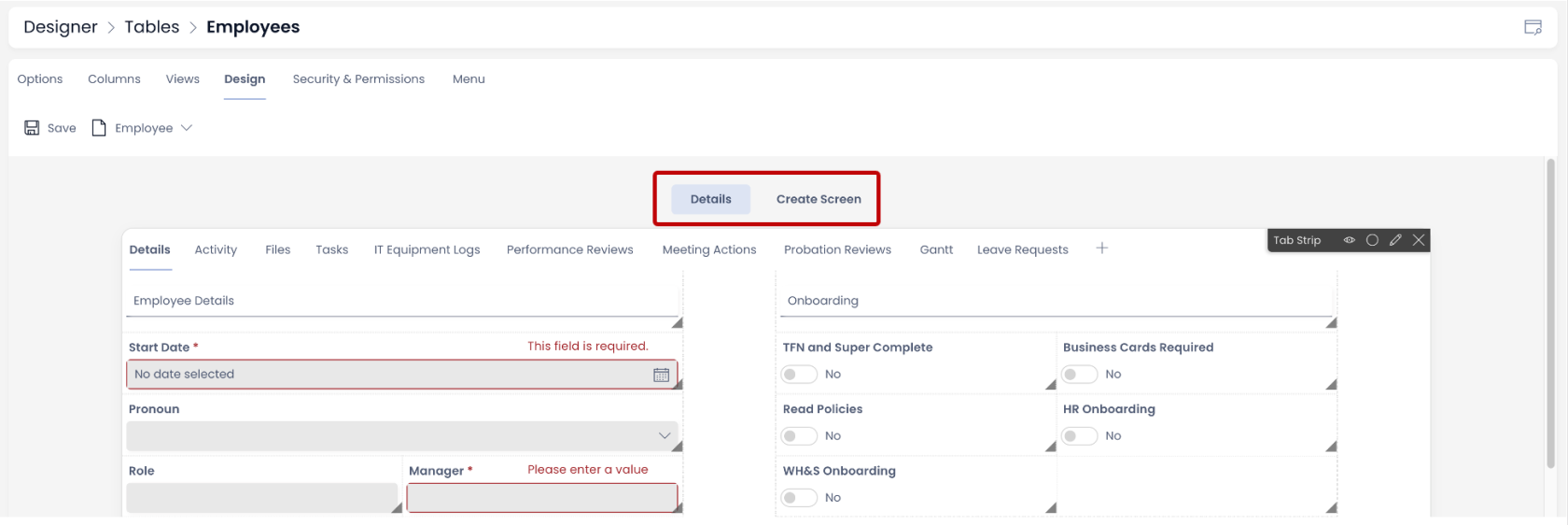
The Premise - Details and Create Screen are always in sync
It is important to note that the "Details" and "Create Screen" are always in sync. This means whatever is configured to be displayed in "Details" is automatically reflected in corresponding "Create Screen" and vice versa.
Case: Add a component to Details and corresponding Create Screen will have it automatically.
Case: Add a component to Create Screen and corresponding Details screen will have it automatically.
Need to Hide a component from a breakpoint
While the components on "Details" and "Create" screens are always in sync, the information presented is for different purposes.
The "Details" screen defines how information will be presented for individual items and collection of items. While the "Create" screen provides a form that can be filled with information to create a new item.
Hence, there may be a need for a user to hide something from "Details" screen which shows up on "Create" screen or vice versa.
Hide field / component from Create Screen
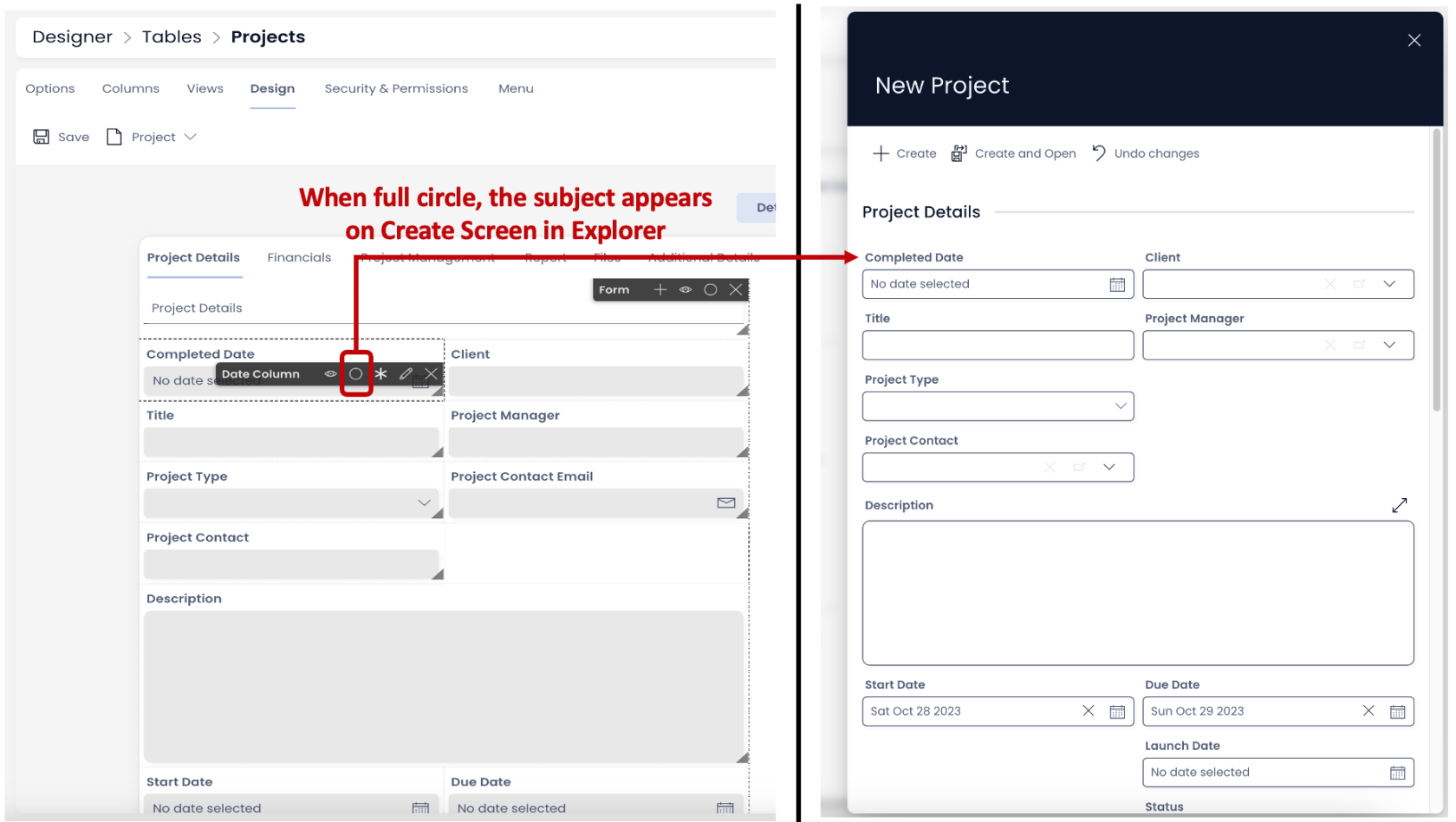
Scenario - Imagine you have a Projects Table. Here the information about each project is stored. Here an Item Details should show "Project Completion Date". However, this may not be a piece of information that can be filled at the time of creation of the Project Item.
Therefore, you would want to have this displayed on "Details" screen but hide it from "Create" screen.
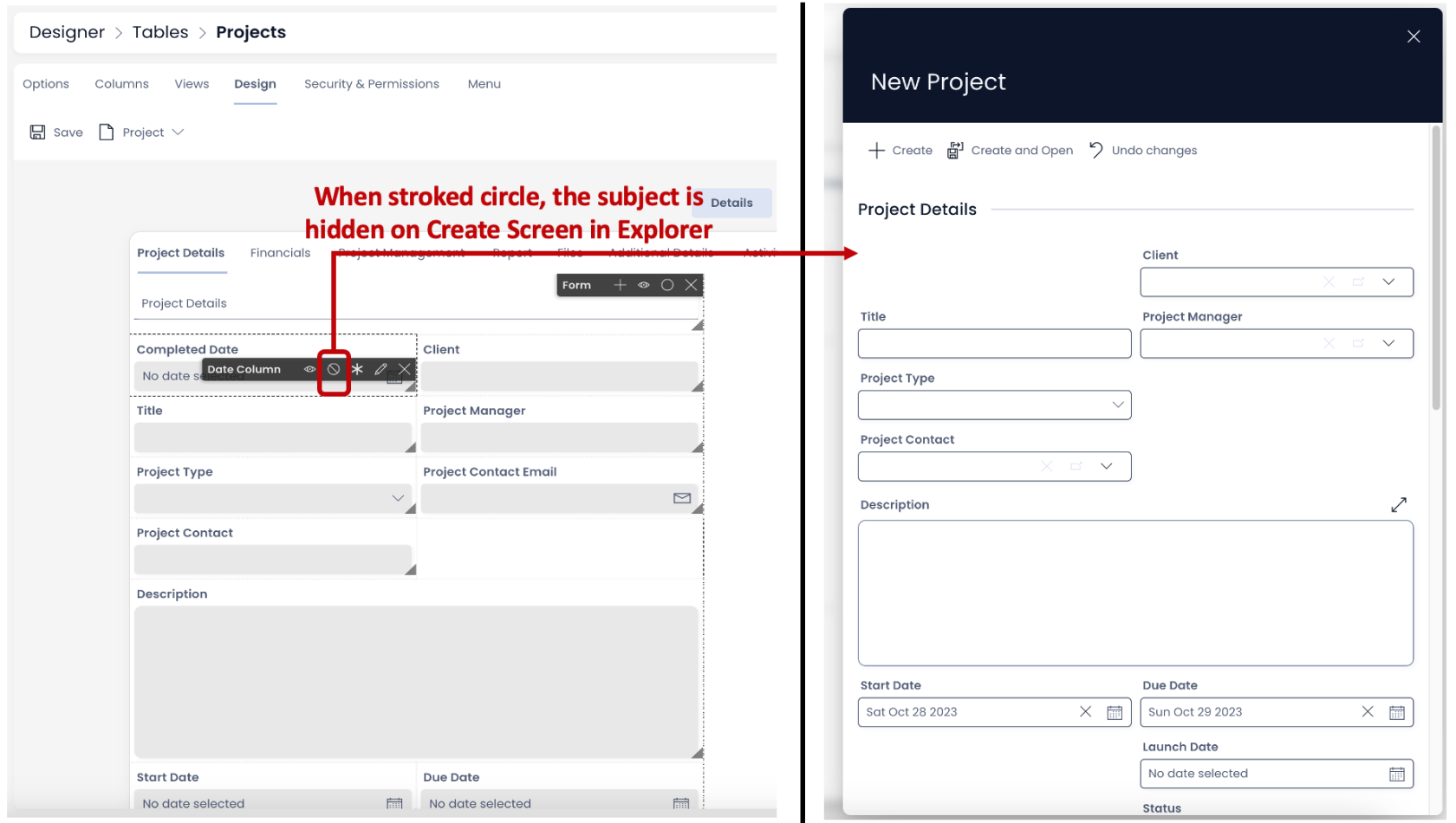
You can hide any field, component or layout from Create Screen by using the circle icon in the horizontal options bar. This is highlighted below:

-
When the circle appears full, this means the subject is visible on the "Create" screen.
-
When the circle appears with a diagonal strike, this means the subject is hidden from the "Create" screen.
Hiding a group of components / fields from Create screen
Just like hiding a single component or field from the "Create Screen", you can also hide a group of fields (present in a Form component) or a group of components (present in a Layout)
Imagine you are displaying the invoice information for a client on the "Details" screen. This contains information like Invoice Number, Project Name, Contact, Quote Number etc. All such information regarding the invoice details are organised under a Form component on a Grid Layout.
If you want all of the above information in the Form component to be hidden from the "Create" screen, just toggle the circle icon on the Form component. You need not individually hide each field from the Page. All the fields in the Form Component will be hidden as the Form is set hidden from "Create" screen.
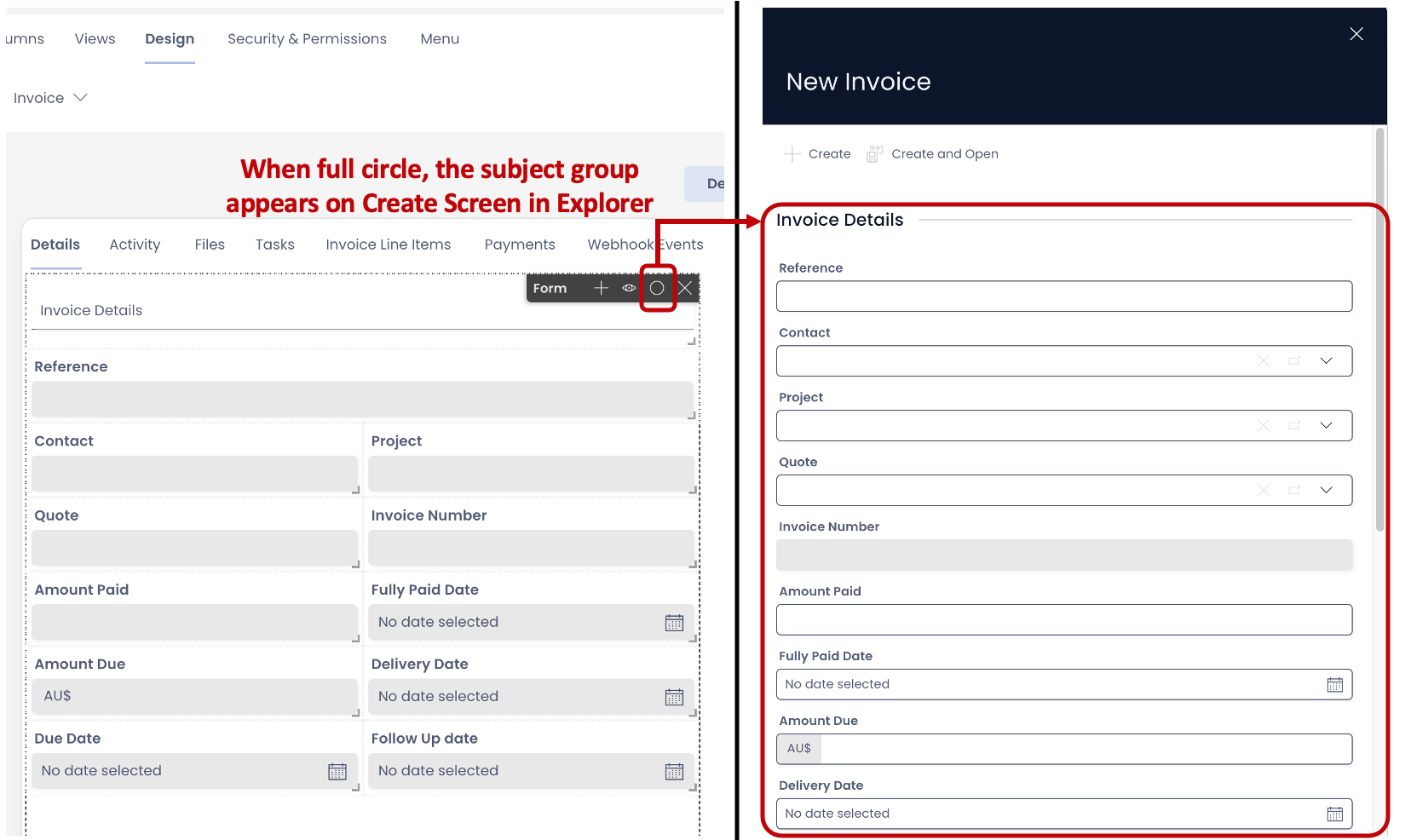
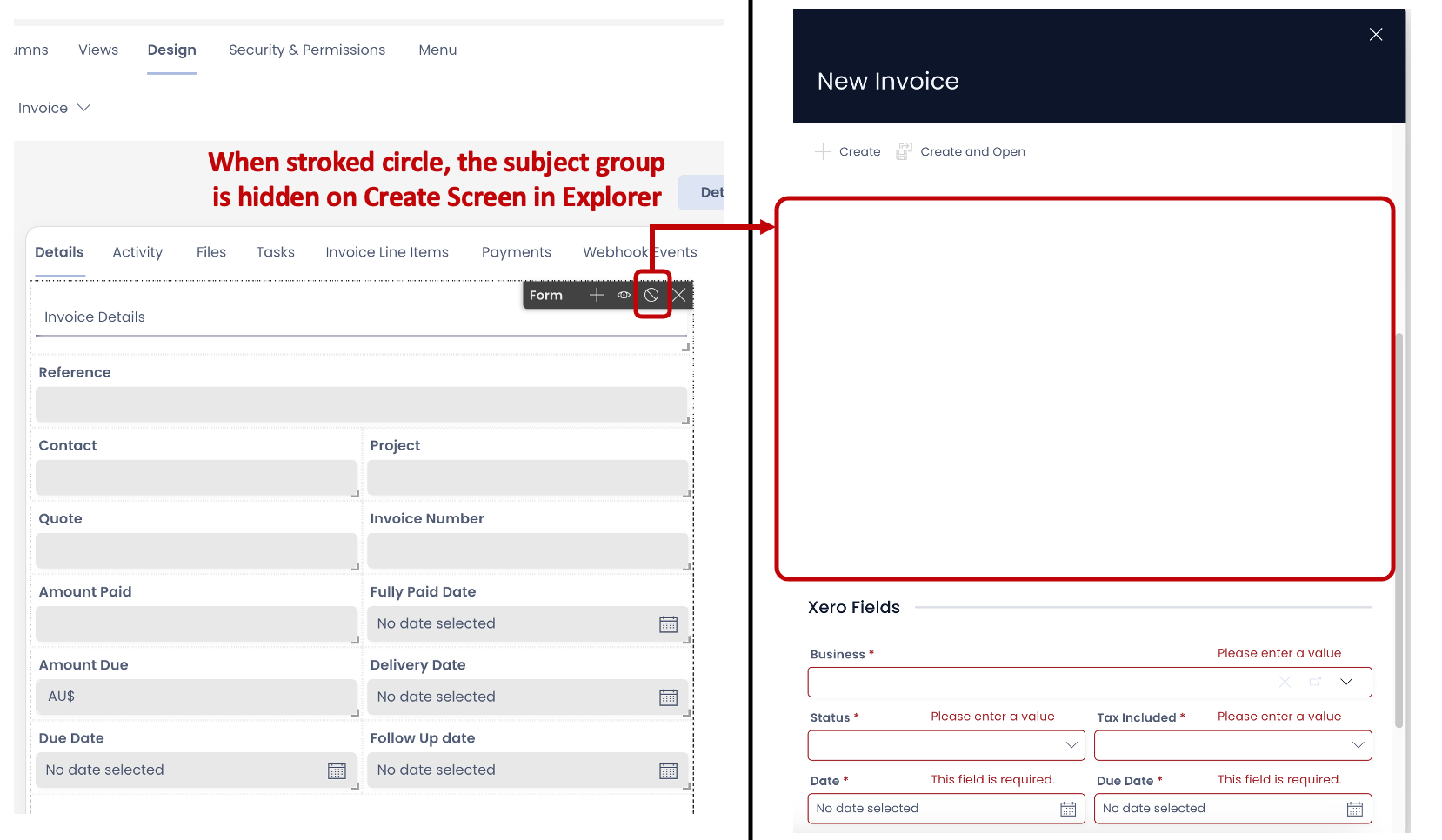
Similarly you can hide / show a layout. All the components in the layout will be hidden or shown with a single click on circle.

All components in Grid Layout will be hidden from the "Create" screen

All components in the Grid Layout will appear in the "Create" screen (if they are not set as hidden individually)
Hide field / component from Details screen
Scenario - Imagine you have a Contacts table. It stores employee contact details. Now you would want each employee to provide their details to the system but may not want to display all information in details (like Personal phone number). However, it is still an important piece of information and needs to be recorded in the database.
In such cases, you would want a certain fields / components to be present at the time of Item Creation (Create Screen) but be hidden from the Details screen.
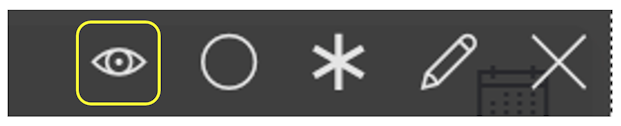
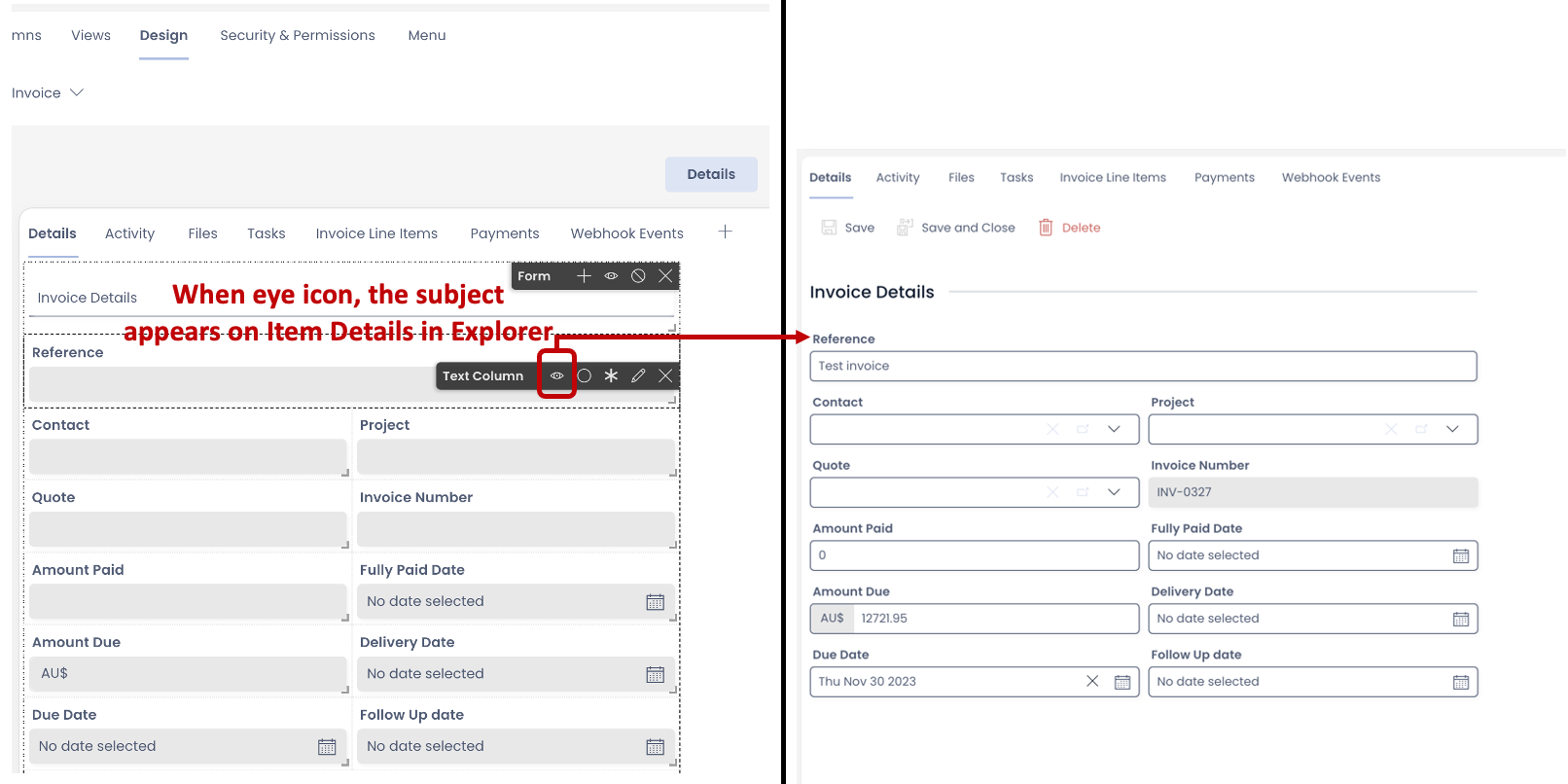
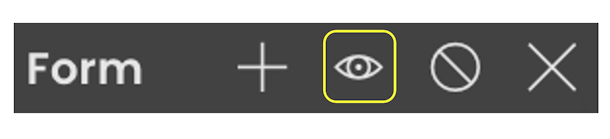
You can hide any field, component or layout from Details screen by using the eye icon in the horizontal options bar. This is highlighted below:
-
When only the eye icon appears, this means the subject is visible on the "Details" screen.
-
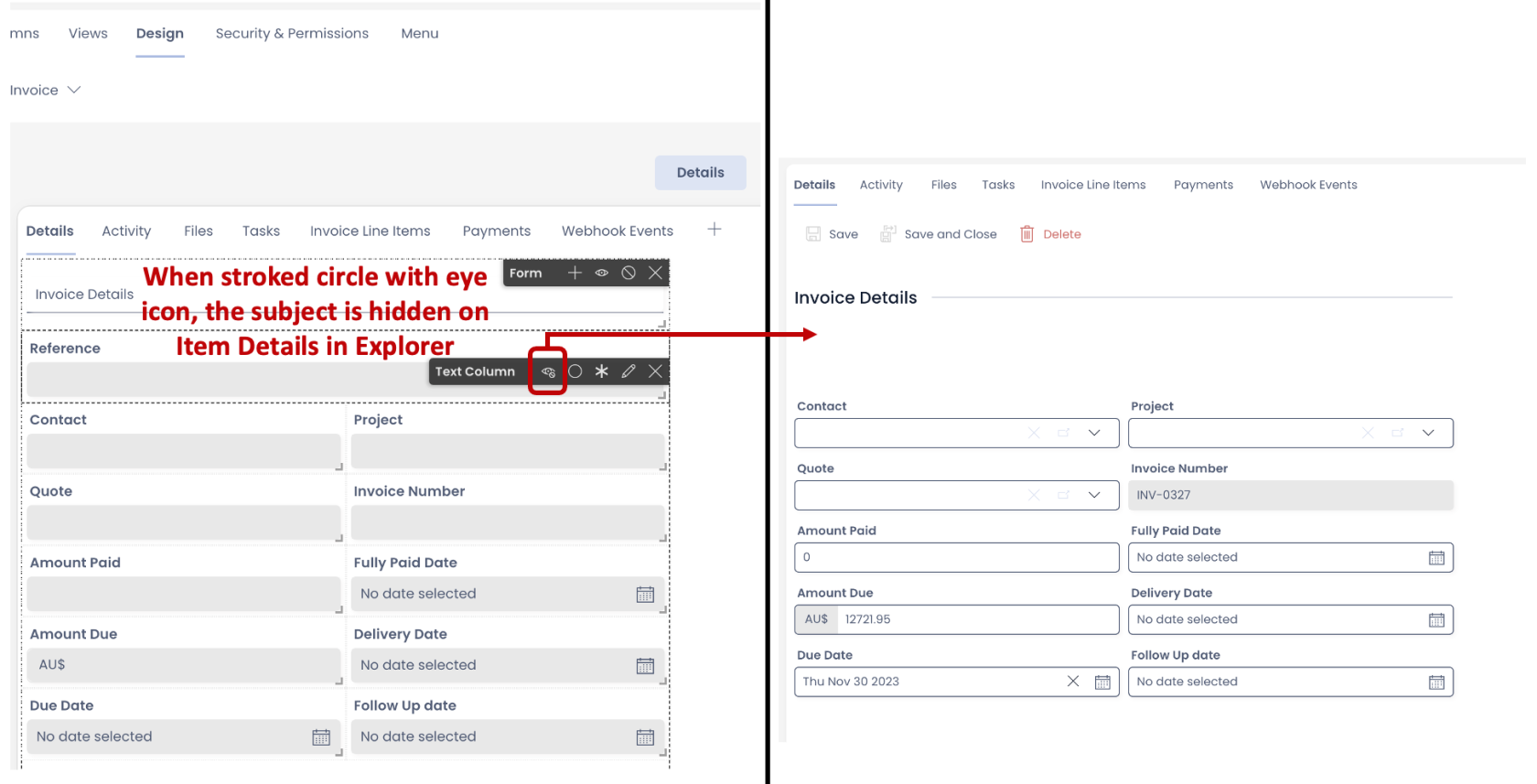
When the eye icon appears with a small stroked circle at the bottom right, this means the subject is hidden from the "Details" screen.
Hiding a group of components / fields from Details screen
Just like hiding a single component or field from the "Details", you can also hide a group of fields (present in a Form component) or a group of components (present in a Layout) from "Details".

All fields in Form component will be hidden from the "Details" screen
All fields will appear in the "Details" screen (if they are not set as hidden individually)

All components in Grid Layout will be hidden from the "Details" screen

All components in Grid Layout will appear in the "Details" screen (if they are not set as hidden individually)
Important points
- A field, component or layout can be hidden from both "Details" and "Create" screen simultaneously.
- The field, component or layout when hidden will be shown as blank space on the Page. You may want to arrange the other field(s), component(s) or layout(s) on the relevant screen. For instance, if you have arranged the components on the Details screen a certain way. Now if you hide some components from the Create screen, then you would need to go to Create screen tab and drag / arrange components there.
Related articles
How to configure Item Details and Item Creation?